

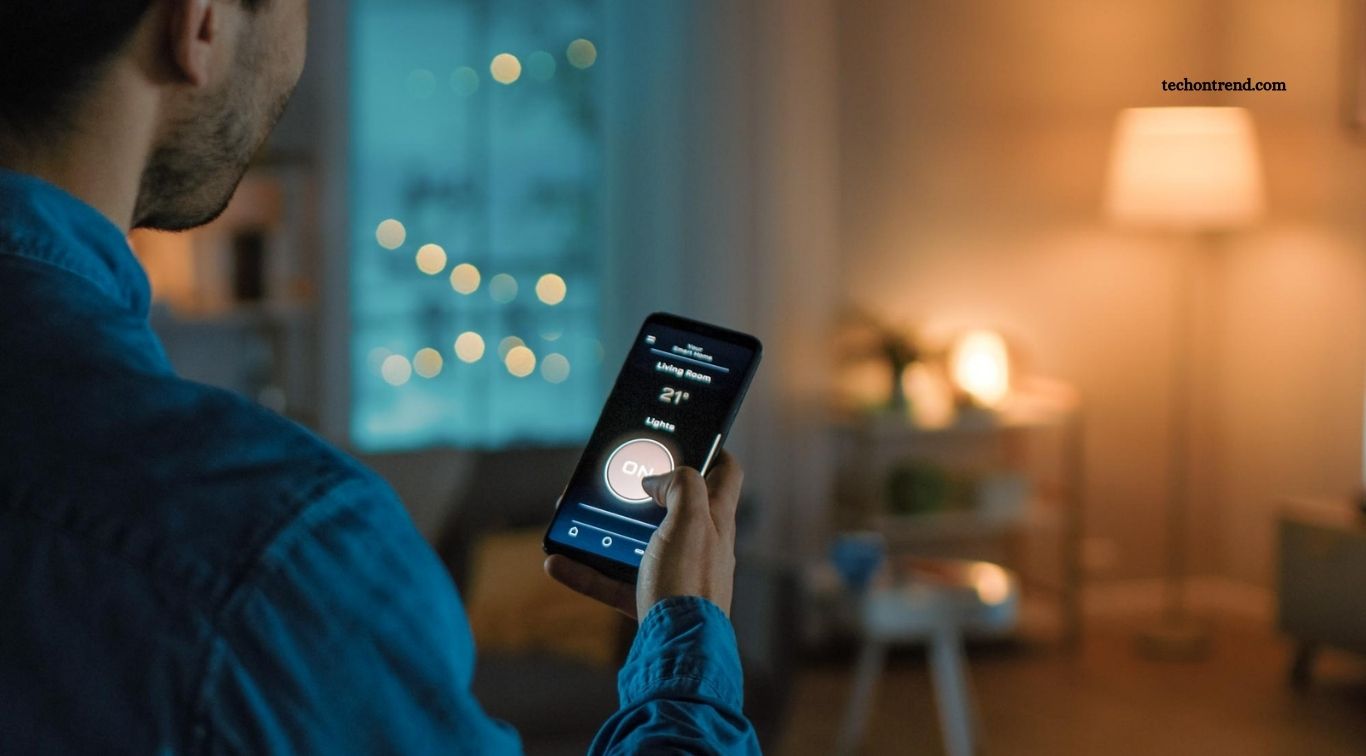
Modern gadgets offer far more than the basic functions most people use every day. Smartphones, laptops, smartwatches, wireless earbuds, and smart home devices often include useful features that remain unnoticed because they are hidden in settings, shortcuts, or companion applications. These tools can simplify daily tasks, improve privacy, save time, and help users get greater value from their technology without purchasing additional equipment.
Discovering these hidden features can transform the way you use your favorite devices. From improving smartphone security to making wireless earbuds more versatile, small adjustments can create a better overall experience. In this guide, we explore practical features found in popular gadgets, explain how they can help, and share tips for finding similar options on your own devices.
Read More: Portable Devices Designed for Work and Travel
Hidden Smartphone Features Worth Exploring
Smartphones contain many useful functions beyond calling, messaging, browsing, and taking pictures. Depending on the operating system and device model, features such as text recognition through the camera, built-in document scanning, app pinning, focus modes, and customizable quick settings can make everyday tasks easier. Some phones also support back-tap shortcuts, allowing users to trigger selected actions by tapping the rear of the device when supported.
Privacy and accessibility tools are equally valuable. App permission controls help you decide which applications can access your camera, microphone, location, and contacts. Features such as live captions, magnification, voice typing, and text-to-speech can make phones easier to use in different situations. Explore your phone’s settings menu and search for specific functions because feature names and availability vary across manufacturers and software versions.
Smartwatch Features Beyond Fitness Tracking
Smartwatches are widely used to count steps, monitor workouts, and display notifications, but many models provide additional tools. Depending on the device, you may be able to control music playback, locate a connected phone, manage timers, respond to messages, or use voice commands without taking your phone out of your pocket. Calendar reminders and customizable watch faces can also make a smartwatch useful for managing everyday routines.
Health-related functions may include heart-rate notifications, sleep tracking, fall detection, and emergency assistance on supported models. However, availability depends on the watch, region, settings, and compatible phone, and health measurements are not a substitute for professional medical advice. Reviewing notification controls and choosing relevant complications for your watch face can help you access useful information without creating unnecessary distractions.
Wireless Earbud Features You Might Be Missing
Wireless earbuds are not just for listening to music. Many models include touch controls, voice assistant access, automatic playback detection, and adjustable sound profiles. Some earbuds can pause audio when removed from your ears, while others allow you to customize tap gestures for skipping tracks, changing volume, or answering calls. These options are often available through a companion app or the connected phone’s Bluetooth settings.
More advanced earbuds may support active noise cancellation, transparency modes, spatial audio, multipoint connections, or hearing-related accessibility features. Noise cancellation can reduce certain surrounding sounds, while transparency mode helps you hear more of your environment without removing the earbuds. Check your model’s supported functions and fit settings to improve comfort and performance, especially when switching between work, travel, and outdoor activities.
Laptop Shortcuts That Save Time
Laptops often include keyboard shortcuts and built-in utilities that can significantly improve productivity. Operating systems commonly support quick window switching, screenshot tools, virtual desktops, clipboard history, and search shortcuts. These functions can reduce the need to navigate multiple menus, particularly when you regularly move between documents, browser tabs, messaging applications, and other work tools.
Battery management and multitasking features are also worth exploring. Depending on your system, you may be able to adjust power modes, control background applications, use window snapping, or configure startup programs. Learning a few shortcuts that match your daily workflow can save time over the long term. Before installing extra productivity software, review the tools already included with your laptop.
Smart TV Features Beyond Streaming
Smart TVs provide more than access to movies and television shows. Many models include screen mirroring, voice search, picture presets, accessibility options, parental controls, and automatic subtitle settings. Some televisions can connect to compatible phones or computers, allowing you to display presentations, photographs, or other content on a larger screen. The exact options depend on the television’s operating system and connected devices.
Picture and sound settings can also improve your viewing experience. Movie or cinema modes may provide a different image presentation from vivid presets, while dialogue enhancement can make speech easier to hear on supported models. You can often adjust captions, reduce motion processing, and organize frequently used applications. Review privacy settings as well, particularly those related to voice assistants, viewing recommendations, and usage data.
Hidden Camera Features for Better Photos
Modern smartphone cameras often include advanced functions that users overlook. Depending on the model, you may find night photography modes, portrait effects, exposure adjustments, grid lines, timer controls, panorama capture, and high-resolution formats. Some camera applications can also recognize text, scan documents, identify objects, or translate visible writing. Exploring these tools can help you capture clearer photos and handle practical tasks without installing separate applications.
Small changes to camera settings can improve composition and consistency. Grid lines help align subjects, while exposure controls let you brighten or darken an image before taking the shot. Portrait modes can create background blur, although results vary with lighting and subject distance. For important photos, check the resolution and file format settings, as higher-quality options may use more storage space.
Smart Home Devices With Useful Extra Functions
Smart speakers, connected lights, plugs, and thermostats often support features beyond their basic controls. Many systems let you create routines that perform several actions together, such as switching off selected lights at bedtime or adjusting compatible devices when you leave home. Scheduling and automation can reduce repetitive tasks while helping you manage your living space more conveniently.
Security and privacy settings deserve equal attention. Review which accounts can control your devices, enable multifactor authentication where available, and install firmware updates from the manufacturer. Some smart home systems offer activity histories, guest access, presence detection, or alerts when a connected device changes state. Configure these options according to your needs, and avoid granting unnecessary permissions to third-party applications.
Tablet Features That Improve Productivity
Tablets can function as more than portable screens for reading and entertainment. Many support split-screen multitasking, floating windows, stylus input, handwriting recognition, document markup, and wireless keyboard shortcuts. These features can make it easier to review documents, attend online meetings, take notes, and manage several tasks without constantly switching between applications.
File management and accessibility tools can also improve a tablet’s usefulness. Depending on the operating system, you may be able to connect external storage, scan documents, use voice typing, or transfer files between compatible devices. If you regularly use a tablet for work or study, explore its multitasking settings and learn the gestures that control windows and navigation. A few adjustments can make the device feel more capable without requiring new hardware.
Power Bank and Charging Features to Know
Portable chargers often include useful specifications and features beyond their battery capacity. Some models provide multiple output ports, fast charging, pass-through charging, battery indicators, or support for charging different device types. Understanding the labels on your power bank can help you choose the right port and cable for your phone, tablet, or other compatible gadget.
Charging speed depends on several factors, including the power bank’s output, the cable, the device, and supported charging standards. A high-capacity battery does not automatically guarantee the fastest charging performance. Check the manufacturer’s specifications before connecting devices, and use reputable chargers and cables that meet your device’s requirements. Avoid using damaged accessories or exposing charging equipment to excessive heat.
Security Features Built Into Everyday Gadgets
Many popular gadgets include security tools that are easy to overlook. Smartphones and computers may offer password managers, biometric authentication, device encryption, automatic security updates, and remote location or locking functions. These tools can help protect personal information if a device is lost or accessed by someone else. Their availability and configuration depend on the operating system, hardware, and account settings.
Take time to review your security options and enable the protections that suit your situation. Use strong, unique passwords, activate multifactor authentication where possible, and keep software updated. Review application permissions and remove accounts or programs you no longer use. For connected gadgets, change default passwords when applicable and check whether the manufacturer provides ongoing security updates.
How to Discover Hidden Features on Your Own Devices
The easiest way to find hidden features is to explore your device’s settings methodically. Search for terms related to automation, accessibility, privacy, display, battery, gestures, and shortcuts. Many operating systems include a search bar within settings, making it faster to locate specific controls. You can also check the official user manual or manufacturer’s support pages for features designed for your exact model.
Experiment with one feature at a time and check how it affects your normal routine. Some functions may require a software update, a compatible accessory, or permission changes before they work. Avoid changing unfamiliar security or privacy settings without understanding their purpose. Keeping a short list of useful shortcuts and configurations can help you remember what works best and make future device upgrades easier.
Frequently Asked Questions
What Are Hidden Features in Gadgets?
Hidden features are useful functions that are less obvious than a device’s main controls, such as shortcuts, automation, privacy tools, and advanced camera settings.
Do Hidden Gadget Features Require Extra Apps?
Not always. Many features are built into the device, although some advanced functions require a manufacturer’s companion application.
Can Hidden Features Improve Productivity?
Yes. Keyboard shortcuts, voice typing, automation, multitasking tools, and customizable controls can reduce repetitive work and save time.
Are Hidden Features Available on Every Device?
No. Availability depends on the device model, operating system, region, software version, and compatible accessories.
How Can I Find New Features After an Update?
Review the update notes, explore relevant settings, and check the manufacturer’s official support information for your device.
Are Hidden Gadget Features Safe to Use?
Most built-in features are safe when used as intended. Review permissions and privacy settings before enabling unfamiliar functions or connecting third-party applications.
Conclusion
Today’s most popular gadgets contain useful features that can make everyday technology more convenient, secure, and productive. From smartphone shortcuts and smartwatch controls to laptop utilities, smart home automation, and advanced camera settings, these functions help users get more value from devices they already own. Exploring settings and learning a few practical tools can improve your experience without requiring expensive upgrades. The best approach is to discover features gradually and choose those that genuinely support your needs.
